How ChatGPT Apps Work Under the Hood: MCP, Tools, Widgets, Auth

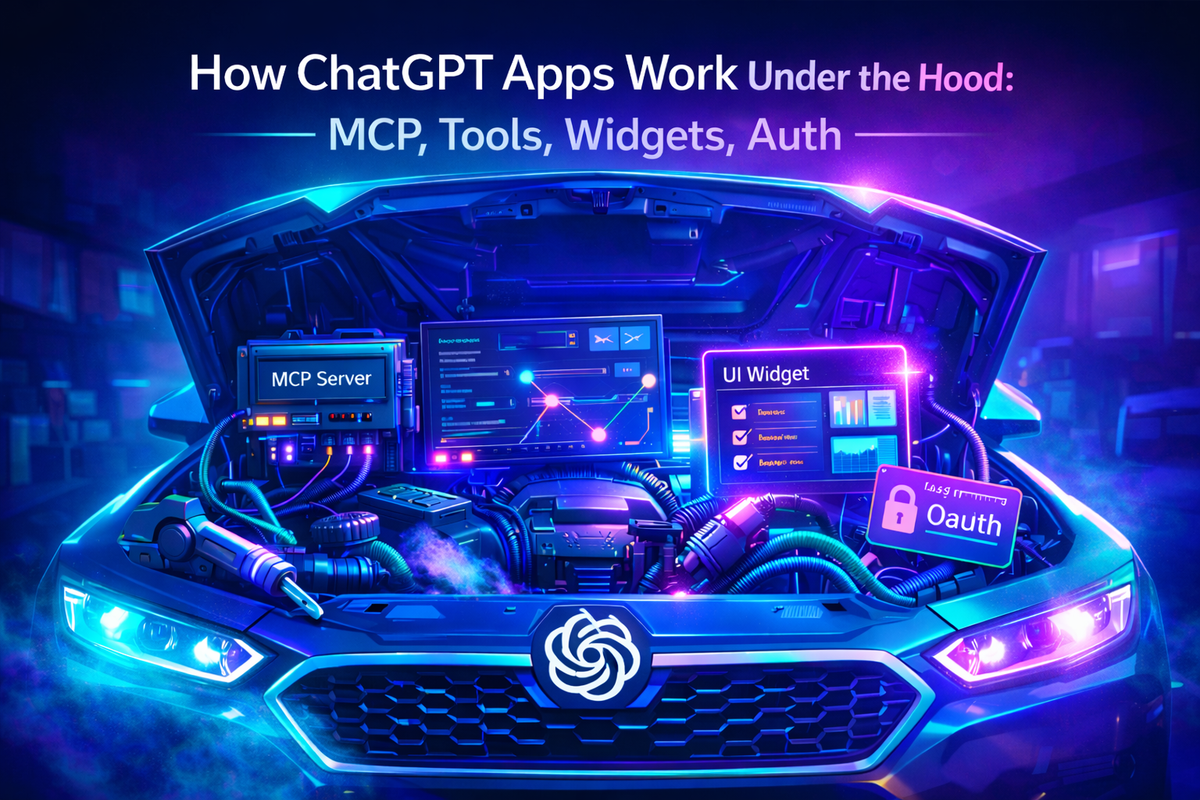
This guide explains how ChatGPT Apps work under the hood: how ChatGPT reads your app’s MCP capabilities, calls tools on your server, and optionally renders a widget UI for selection, preview, and confirmation.
If you are exploring Apps, this is the technical mental model you want: what runs inside ChatGPT vs what runs on your infrastructure, and how the request flow moves from a user prompt to a tool call to an in-chat UI.
In this guide:
- How ChatGPT Apps differ from GPTs in practice
- Why Apps exist and what they unlock inside chat
- How widgets work (iFrame UI) and when to show them
- How MCP and your backend fit together: tools, structured output, auth
GPTs vs ChatGPT Apps: Different Surfaces, Different Product
Let’s cut off the biggest source of confusion first. In ChatGPT there are GPTs, and there are ChatGPT Apps. The names are close, but they are not the same thing, and it is not “the same chat” under the hood.
A GPT is primarily a configured assistant. You define instructions, tone, and behavior, you can attach knowledge, and in some cases you can connect tools. But the core user experience is still chat-first, and GPTs live in their own dedicated section inside ChatGPT.
ChatGPT Apps are a separate product surface. They are built and distributed as Apps, can appear in an app directory, and can be launched from regular chats as part of a workflow. Most importantly, an App may include a real UI, not only messages.
Here is the practical difference:
- GPTs are mostly a conversation configuration: prompt, behavior, optional tools.
- ChatGPT Apps can be published in an app store style directory.
- Apps can be launched from almost any chat when they are relevant.
- Users can add an App to their personal list of Apps.
- Apps may include an application-like interface, not just text.
As you can guess, the key differentiator is the presence of a visual interface, even though it is technically optional. The moment you can move a user from “describe what you want” to “click, select, confirm, preview”, you stop building a better chat prompt and start building software.
Why Does ChatGPT Need Apps?
To understand the architecture, it helps to ask a simple question first: why does ChatGPT need Apps at all, and what do they give OpenAI?
Without Apps, ChatGPT is limited to text and mostly static output. You can explain, summarize, draft, and generate content, but the moment a user needs real interaction, the experience breaks. They have to leave the chat to click through settings, authenticate, browse options, preview results, or confirm an action. That context switch is expensive: you lose momentum, you lose state, and in many cases you lose the user.
Apps solve this by keeping the workflow inside ChatGPT. Instead of “here is what you should do”, you get “here is the interface, make a choice, confirm it, and I will execute it”. From the platform perspective, this turns ChatGPT from a response engine into an execution surface.

Three examples to make it concrete:
- Booking and scheduling
You want to schedule a meeting with constraints: timezone, attendees, preferred slots, location, and a couple of exceptions. In a plain chat, the assistant can propose times, but you still need to jump to a calendar UI to see conflicts and confirm. With an App, ChatGPT can show availability, let you pick a slot, and then book it after explicit confirmation. - Data review and reporting
You ask for a weekly report based on metrics from your product. A text-only answer can summarize, but it cannot let you filter, drill down, or choose which segments to include. With an App, you can select date ranges, toggle segments, preview charts or tables, and generate the final report in the exact shape you need. - Purchase and configuration
You want to buy something with constraints: budget, specs, delivery options, and a couple of must-have features. In chat, you get recommendations, but you still need to open multiple tabs, compare variants, and place the order. With an App UI, you can compare options side by side, select a variant, authenticate, and confirm the purchase, all without leaving the conversation.
That is the point: Apps expand ChatGPT from “a place where you get answers” into “a place where you complete workflows”.
How To Build a Frontend for a ChatGPT App

A UI is not mandatory. Many Apps can be tool-only, and even UI-heavy Apps should show the interface only when it helps: selecting an option, reviewing output, editing, or confirming a write action. Outside of those moments, chat is faster.
Your UI Runs as an iFrame Widget
When you build a frontend for a ChatGPT App, you are building a web widget embedded as an iFrame inside ChatGPT. It is not a native screen and it does not share runtime with ChatGPT.
That gives you a clear set of constraints: a smaller viewport, fast load times, predictable layouts, and careful handling of state, because the widget can appear only for one step and then disappear as the conversation continues.
What You Can Build It With
You can use any modern web stack: React, Next.js, Vue, Svelte, or plain HTML and TypeScript. Choose based on the complexity of the widget.
For simple “pick and confirm” screens, a lightweight UI often beats a full framework. For richer flows, React-class stacks are fine as long as you keep the bundle small and the UI focused.
How the Widget Shows Up After an MCP Call
In most Apps, the widget does not appear “by itself”. It is typically shown after a tool call.
- ChatGPT triggers an MCP tool call.
- Your server returns structured output.
- ChatGPT renders the response, and when it makes sense, it also renders the widget and passes it the data for that step.
That is why frontend design starts with tool design. If your MCP tools return clean structured results, the UI can render quickly and feel natural. If tools return a blob of text, you force everything back into chat and the widget becomes much less useful.
Why ChatGPT Apps Use MCP
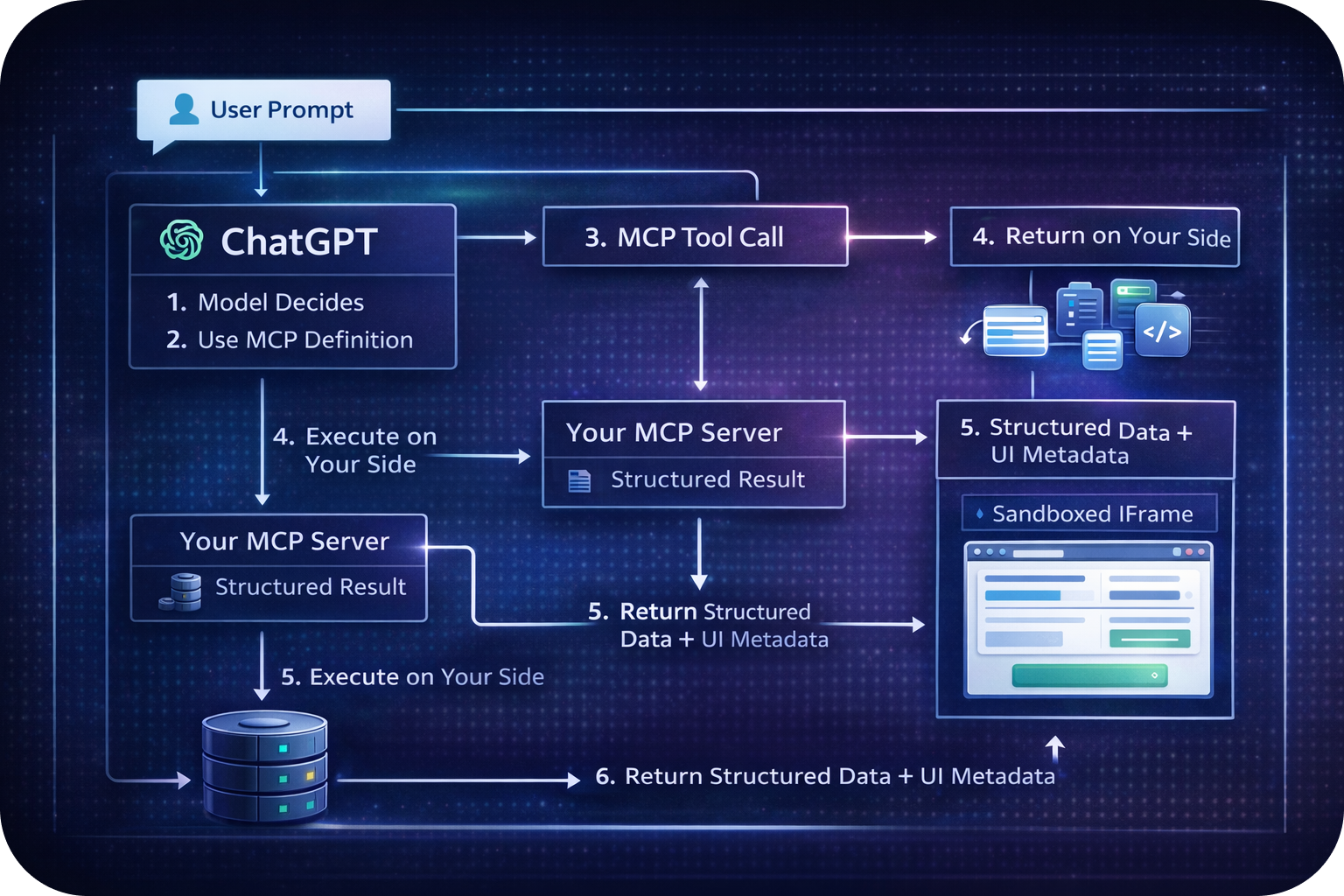
Think of MCP as a capability contract. It is how you explicitly tell ChatGPT what it is allowed to control in your App: which operations exist, which parameters they take, what they return, and what constraints apply.
What It Looks Like in Practice
Imagine a user asks: “Build a weekly product report and give me a country filter so I can choose what to include.”
The flow looks like this:
- The user writes the request in chat.
- ChatGPT reads your App’s MCP definition and discovers what it can do, for example:
get_metrics(date_range, breakdown)list_countries()build_report(metrics, filters)
- ChatGPT selects the right tools and passes the parameters it can infer from the request: the date range, the breakdown, and initial filters.
- Your MCP server runs the computations and returns structured output: metrics, available countries, and a draft report.
- ChatGPT renders the response and, if your App includes UI, shows a widget for country selection, preview, and confirmation.
- After the user makes a choice in the UI, ChatGPT issues a follow-up MCP call (for example
build_reportwith final filters) and displays the finished result.
In one line: MCP exists so ChatGPT knows which “controls” your App exposes, can call them correctly with well-formed parameters, and you can return results and UI steps that fit the user’s flow.
Backend for ChatGPT Apps: MCP Server and Your Logic
A backend is not always required. If your App only reads public data or does simple transformations, you can sometimes get away with a minimal MCP server and no heavy infrastructure. But the moment you deal with personal data, integrations, write actions, payments, or account-level access, a backend becomes mandatory.
In practice, most Apps boil down to one thing: you run an MCP server that receives tool calls and executes work on your side.
What to Build It With
You can use any stack that is easy to ship as a web service: Node.js, Python, Go, Java. Choose what matches your existing infrastructure and team skills. The language matters less than reliability: stable responses, good logging, safe retries, and strict access control.
What the Backend Actually Does
- exposes tools via MCP
- calls your APIs, database, or third-party services
- handles auth and permission checks
- validates inputs and prevents duplicate writes (idempotency)
- returns structured output that ChatGPT can render as text and UI
In short: ChatGPT orchestrates, your backend executes.
Summary
ChatGPT Apps are a separate product surface: MCP defines what your App can do, your backend executes tool calls, and an optional widget adds UI where selection, preview, or confirmation matter.
If you have already built your App and want to ship it, see our guide on publishing it to the ChatGPT store: https://www.apps-in-gpt.com/how-to-publish-an-app-to-chatgpt/